
0:43 AM How to Integrate Moen FLO with Google Home, Alexa, and HomeKit | |
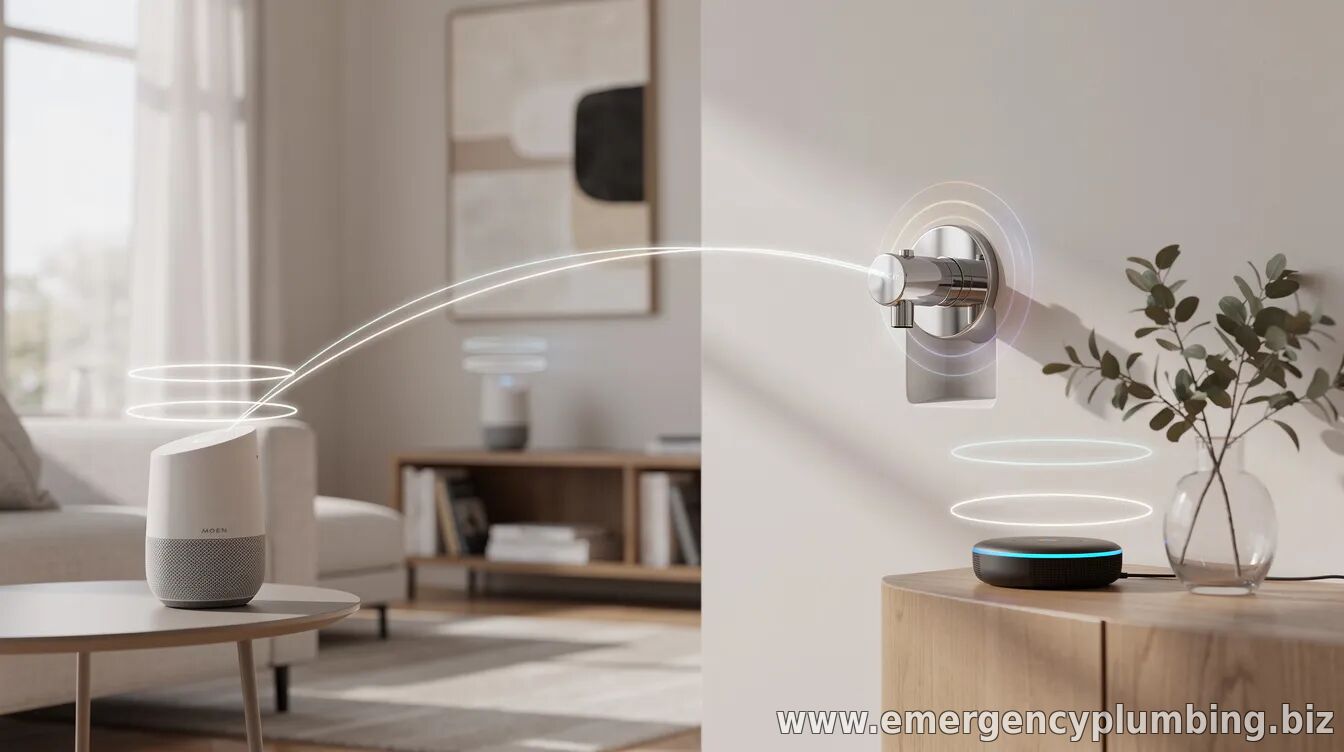
Integrating your Moen FLO smart water monitoring system with popular smart home platforms lets you manage alerts and routines through the ecosystem you already use. The setup typically involves confirming your device is working in the Moen app first, then linking your Moen account to Google Home, Amazon Alexa, or Apple Home.
Before you start, make sure your Moen FLO device is successfully added and online in the Moen app. You’ll also want your phone handy, Wi‑Fi credentials available (if your system requires re-commissioning), and the ability to sign into the same smart home account you use day to day. Integrate Moen FLO with Google Home
Start by opening the Google Home app and ensure you’re signed into the correct Google account. Then, in Google Home settings, look for options related to managing connected services or devices. From there, search for the Moen smart home integration (often shown via the Google-supported “Works with Google” connections) and link it to your Moen account.
Once linked, Google Home should discover your Moen FLO sensors and services. If nothing appears, verify you’re using the same Moen account you used during initial setup, then try a refresh or device rescan in Google Home. Integrate Moen FLO with Alexa
To connect Moen FLO with Alexa, open the Alexa app and go to Settings. Navigate to the section for smart home or connected devices, then find the Moen integration under the list of available skills or services. Enable the Moen skill/service and authorize access to your Moen account credentials.
After authorization, return to the device discovery or “Add Devices” flow in Alexa to pull in your Moen FLO endpoints. If the discovery fails, check for account mismatches and confirm the Moen app shows your system as online and functioning normally. Integrate Moen FLO with Apple HomeKit
For HomeKit, begin in the Moen app and locate the section that enables Apple Home integration or HomeKit pairing (the exact wording may vary by app version). You’ll then follow the HomeKit pairing flow using your iPhone or iPad—typically by scanning a HomeKit setup code or using the pairing prompt presented in the Moen app.
After pairing, open the Apple Home app to verify that your Moen FLO accessories appear and are properly named. If you don’t see accessories, ensure you’re signed into the correct Apple ID in Home and confirm the pairing process completed successfully in the Moen app. Common setup issues (and quick fixes)
Most integration problems come down to account linking or device discovery. Try these quick checks if your Moen FLO accessories don’t show up in your smart home platform:
With the integration complete, you can use your preferred platform to surface Moen FLO alerts and monitor status as part of your broader smart home routines. If features you expect don’t appear, the available capabilities can vary by platform and integration version—so check the Moen app and the connected service’s supported features.
If you tell us which Moen FLO model you have and which phone OS you’re using, you can also get a more tailored checklist for the exact pairing screens you should see.
| |
⏰ Dispatcher support 24/7
📞 224-754-1984CALL ☎ Subscribe 👆 FORUM 🗣
North Shore, Northwest suburbs of Chicago, IL
Next & Previous posts
Related articles: